Software
Houzz Logo Print
hzdeleted_10471126

Roobear!! GIMP tutorial question!

16 years ago

Hi, I sent you an email too but just incase it goes in your junk....

I was going through the tutorials you made up for us awhile back and I'm having some problems!

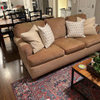
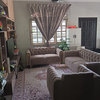
I was able to photoshop a rug in my LR (yay!) but I can't save it. When I go to file there's no "save for the web" option. I only have save, save as, and save as a template.

When I try to do any of them it says:

"your imagine should be exported before it can be saved as a jpeg for the following reasons

Jpeg plug in can't handle transparency

Flatten image

The export conversion won't modify your original image"

What?? Is there something else I need to do with the layers before I can save it? I'm so excited I was able to do this and now I can't show it anyone! :(

Any ideas? I just had to shut down my computer and lost it. I wish I would've at least taken a picture, lol.

Thanks! These tutorials are awesome!

Comments (7)

  • 16 years ago

    Hey shee, I'm sorry you lost your file, I know that can be so frustrating.

    I think your issue is you didn't flatten your image (merge all the separate layers so everything becomes one unchangeable image), before you saved, so it wouldn't let you save for web in the jpeg file format. It's ok to have multiple separate layers when you're saving your work as a gimp project file format (.xcf).

    However when you want to save it for the web as just a jpeg file, then it needs all those layers to be flattened into one layer or image because jpeg file format does not support transparency.

    If this is your problem here's the easy fix, first make sure the file you're working on is saved as a GIMP project file (file extension .xcf).

    Then when you're ready to save your project file as a jpeg image for the web, you need to flatten your layers and save the project as a jpeg with a different file name.

    To do this, make sure your layers window is open (dockable dialog box) if it isn't, go to the menu across the top and roll over the windows option, in the sub menu that comes up choose Dockable Dialogs and then layers. This will bring up your layers box from there rollover the small arrow at the top of the box on the right side-this should bring up a sub menu, roll over layers menu (1st option at the top) which should bring up a list of options at the very bottom your last option should be Flatten Image, choose it.

    After you flatten your image, save it as a different file name, this way your original project file (which you should have saved as a .xcf) can still be worked on with all the layers still separate.

    Link below with similar explantion/ more info on this problem.

    I am wondering why you don't have a "Save for web option"-do you normally see one? The reason I ask is because in the older versions of Gimp this was a plug in you had to add in separately to the program, then in the 2.6 version it was supposed to be fixed and already added in. If you don't see it normally, you might have an older version, or it could be a MAC/PC thing or your operating system- where you might have to add the "save for web" plug in separately.

    Let me know how this all works out and what's going on and we'll see if we can't get this all fixed, you need to be able to save your great creations :).

    I'm glad the tutorials are working for you!

    Here is a link that might be useful: Using layers and saving with Gimp

  • 16 years ago

    Hi Roobear. Thanks you! I only had a chance to read this. It sounds like it's an easy fix hopefully. I won't have time to check it out until later tomorrow night or the weekend but I'll let you know how I make out.

    After checking, I do have Gimp 2.6 version. I couldn't save anything but I wasn't changing the file extension to .xcf. This was the first time I tried a project in there and didn't see a "save for web" option anywhere.

    I'll report back. Thanks again!!

  • 16 years ago

    Does anyone have a link to Roobear's photoshop tutorials?

  • 16 years ago

    Here ya go!

    Here is a link that might be useful: tutorial link

  • 16 years ago

    Even Easier:

    Work on an XCF FIle, and just "Save As" a JPG. When the warning comes up about exporting, say Yes and it will save it as JPG and leave the GIMP file (XCF) alone.

  • 16 years ago

    After an hour.... I think, THINK I saved it.

    It took me that long to get the rug situated in the room and it still doesn't look "good"! I'll be practicing. This program is cool. I think I'm hooked now.

    When I clicked save as the extension was a JPG. The options were then cancel, ignore, export, & something else. I clicked export, got another screen that pops up and says "save as JPG - file size unknown. There's Advanced Options and Load Defults. I just clicked saved and it worked.

    I still don't have an option for "save for web". I guess that doesn't really matter though as long as I can upload the saved pic into photobucket which I haven't tried yet.

    I need to get some other things done yet tonight but I'll mess around with it more this weekend.

  • 16 years ago

    Shee, sounds good!