

Searching for the Perfect Paint Color? Try Our Color Finder Tool
Houzz’s Color Finder tool will help you find a shade that’s just right. Here’s how it works

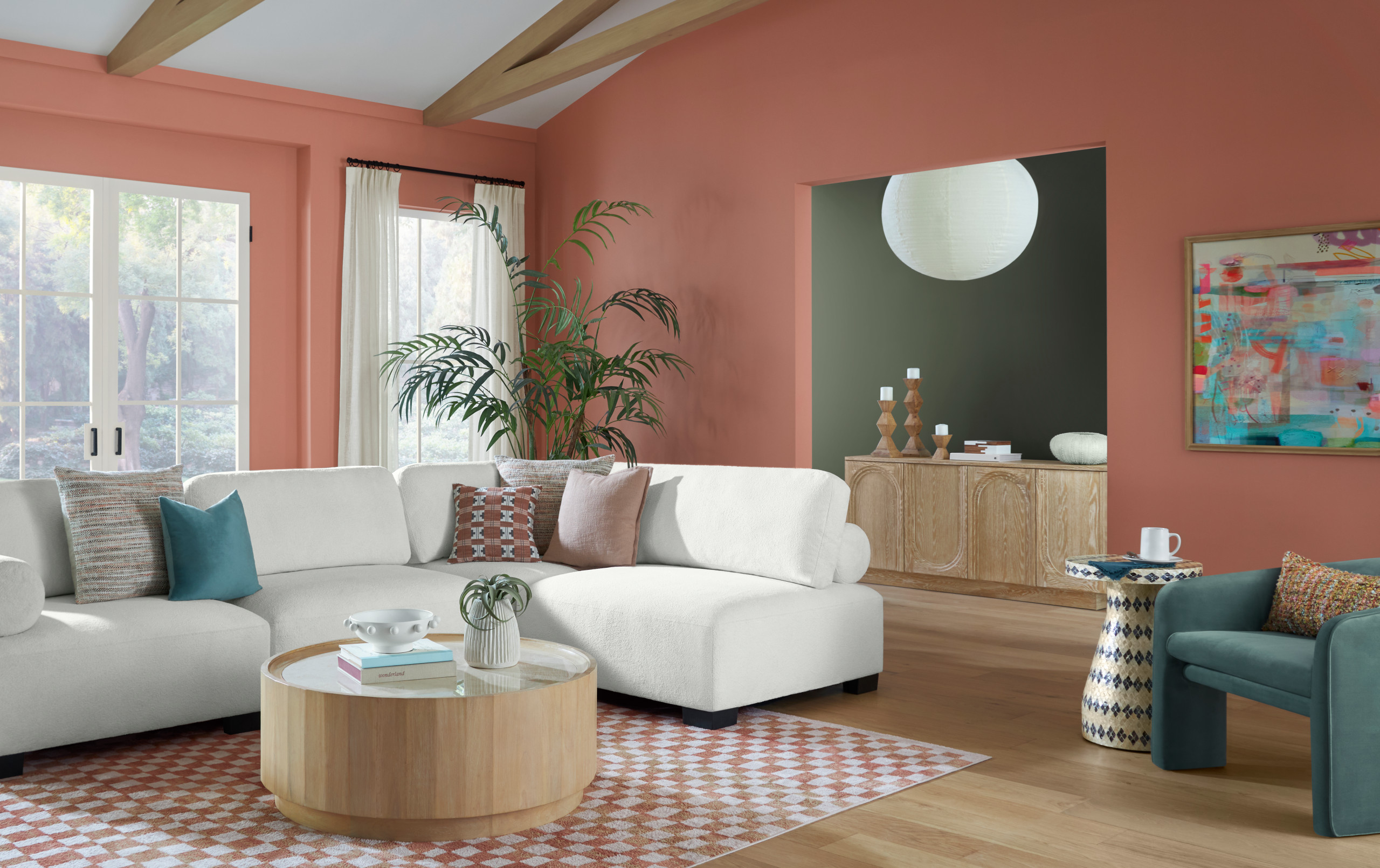
If you’re looking to update your home this season, few design choices have as much impact as color. A simple shift in shade can brighten a room, create a sense of calm or completely reenergize your space. Perhaps you’ve saved a Houzz photo that perfectly captures the look you want — but now you’re trying to pinpoint the exact colors that make it work.
Our Color Finder tool, created in partnership with Sherwin-Williams, helps simplify your search and identify the colors seen in a photo, whether they appear on a wall, a piece of furniture or another accent.
Our Color Finder tool, created in partnership with Sherwin-Williams, helps simplify your search and identify the colors seen in a photo, whether they appear on a wall, a piece of furniture or another accent.
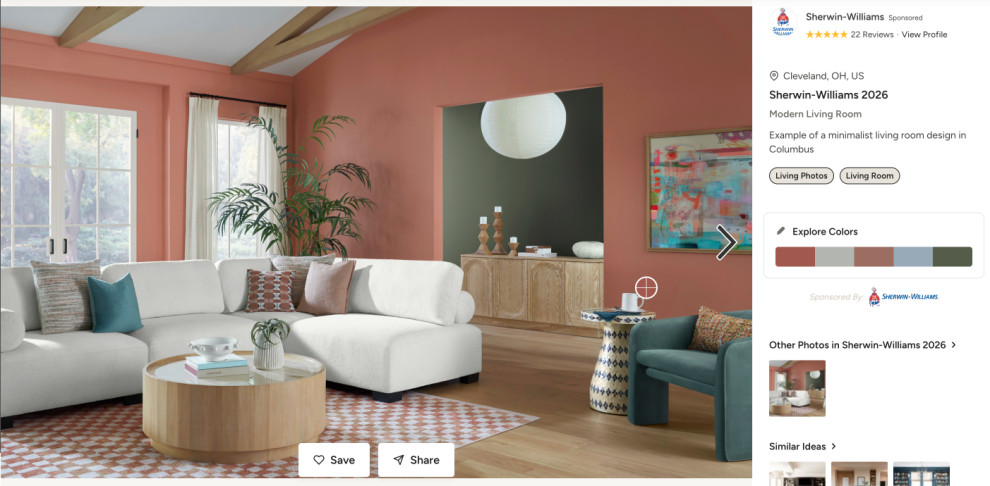
Step 2. Once the Color Finder tool is visible to the right of the image, you can activate it by clicking on any of the color chips or clicking the plus sign (+) hotspot directly on the photo. You can also reveal the name of the color by hovering over any of the color chips.
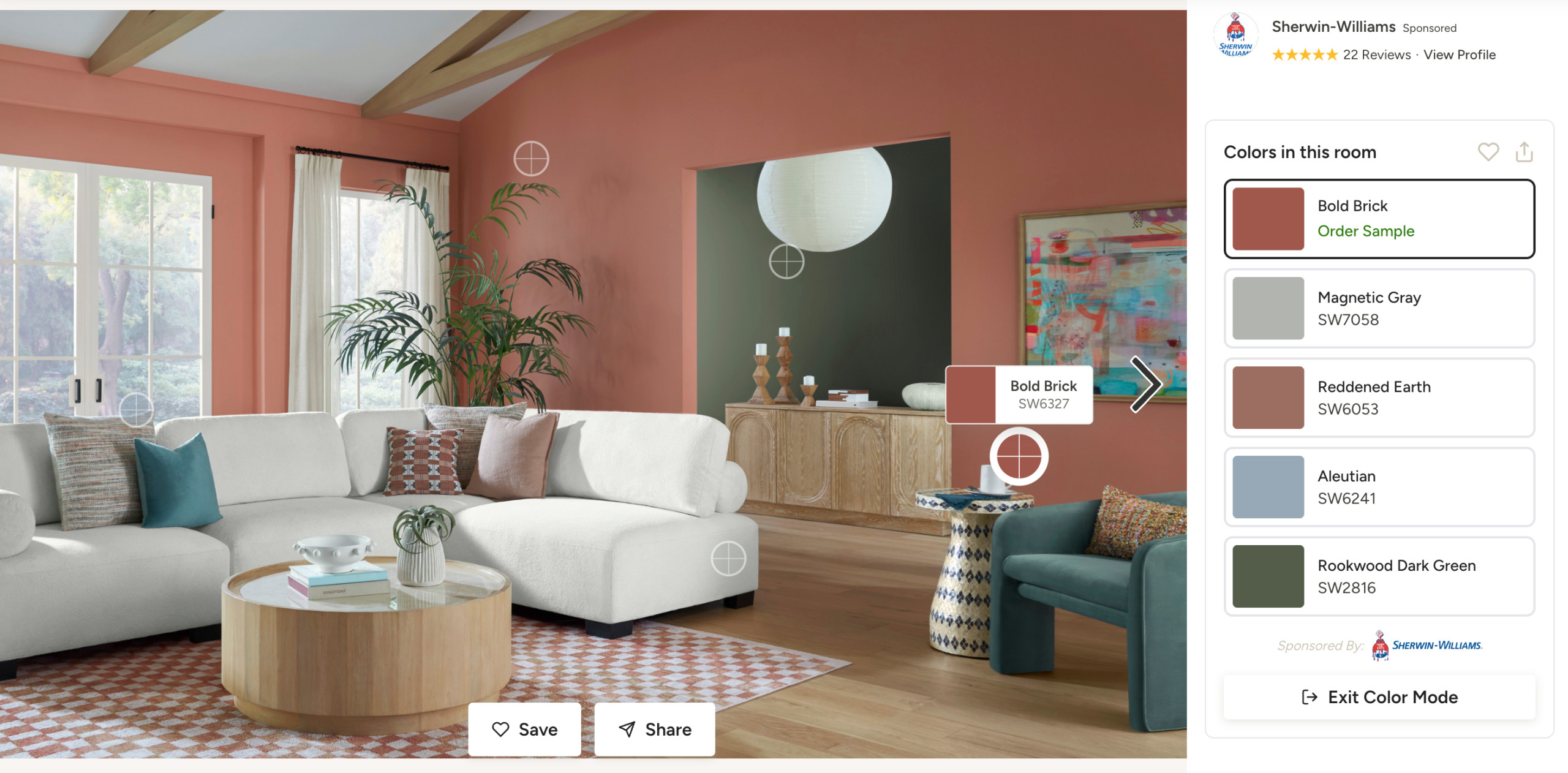
Step 3. When the Color Finder tool is activated, all of the colors will display to the right of the image. You can view, save and share colors and even order samples. To view a specific color, hover over any of the interactive hot spots on the photo. You can also click and drag the hot spots across different surfaces in the photo to automatically identify the closest matching paint colors. If you want to save colors, you can click on the heart next to Colors in This Room. To share colors, you can click on the share icon, and a dialogue box will pop up. In the dialogue box, you can select email recipients and add a message. You will be prompted to sign up or log into your Houzz account to save or share the color palette.
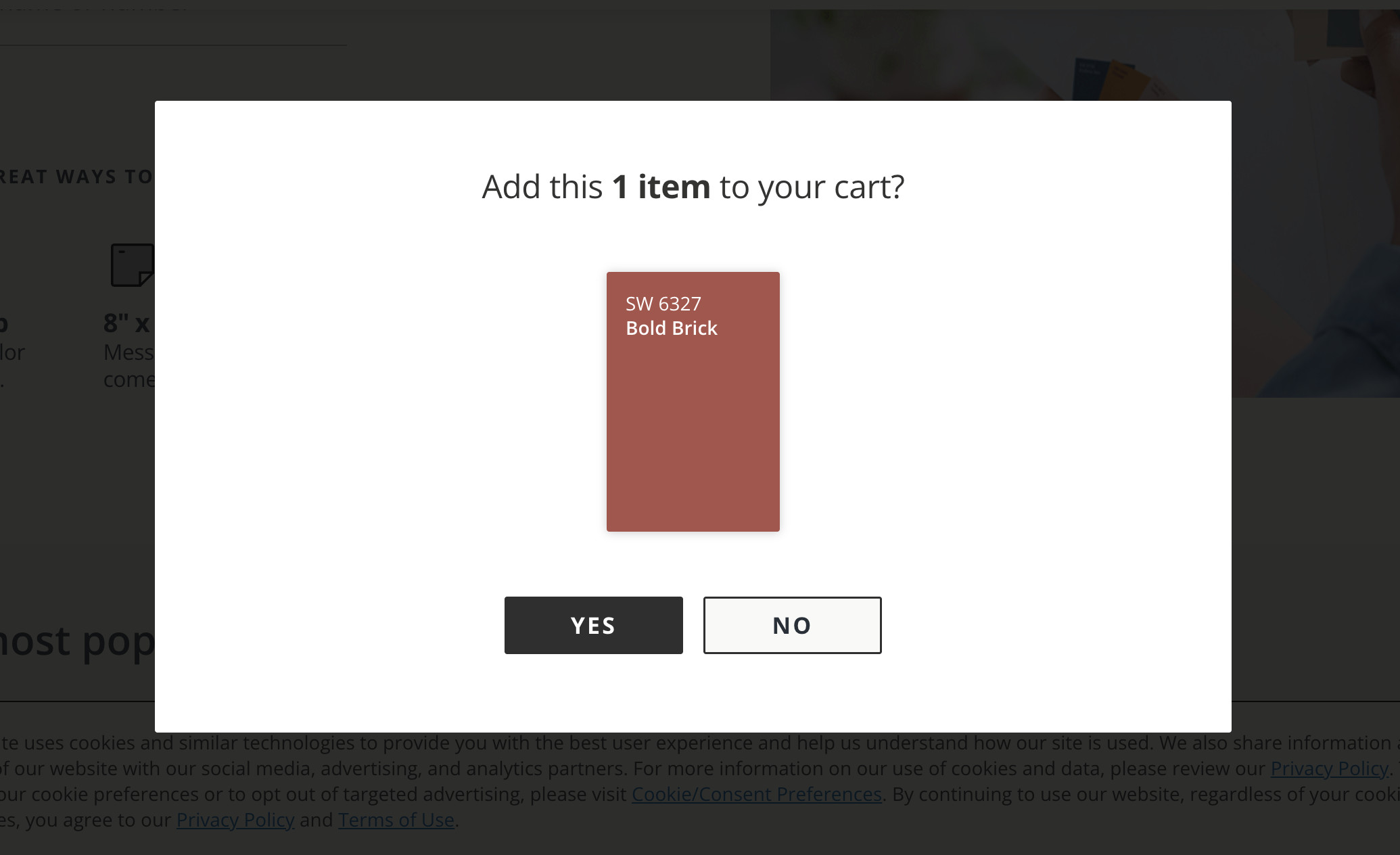
If you’d like to order a sample, click on any of the colors below the photo and an Order Sample option will appear. Click on this option and add the item to your cart to order the sample.
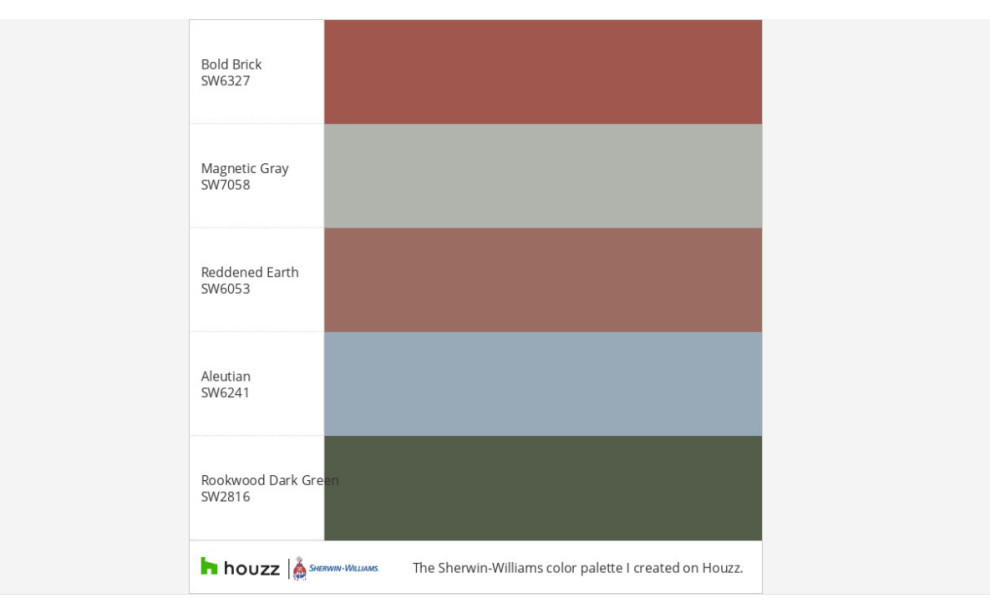
When you save the paint colors to an ideabook, you can use them as a handy reference for anyone who’s involved in your next project — partners, designers, contractors, you name it.
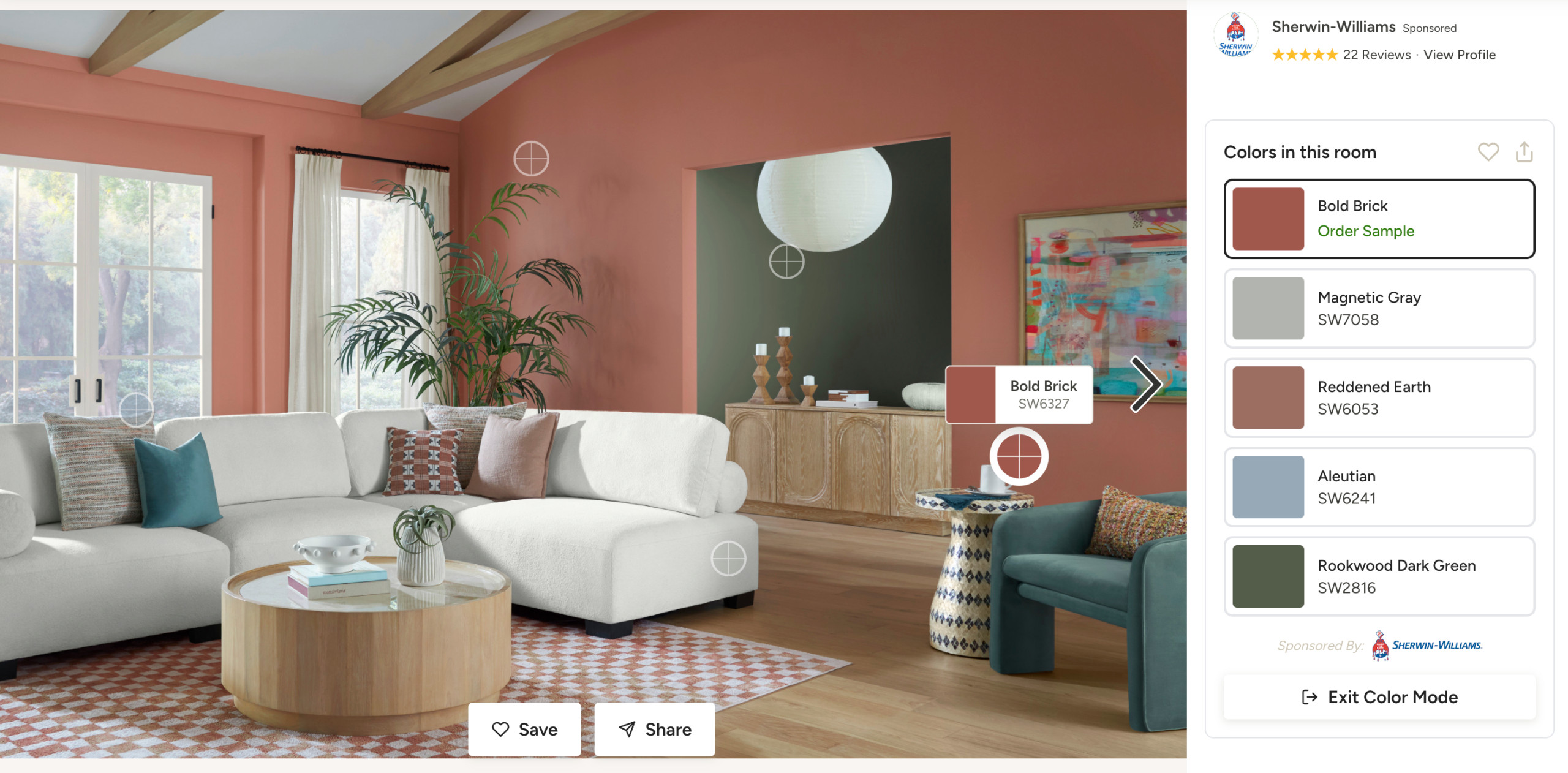
Step 4. To exit the Color Finder tool, click the Exit Color Mode button found in the bottom-right corner of the color chips panel to the right of the image.
The Color Finder can be used to identify colors in any photo. Once it’s activated, it can match the selected color pixels with corresponding Sherwin-Williams paint colors.
The Color Finder can be used to identify colors in any photo. Once it’s activated, it can match the selected color pixels with corresponding Sherwin-Williams paint colors.
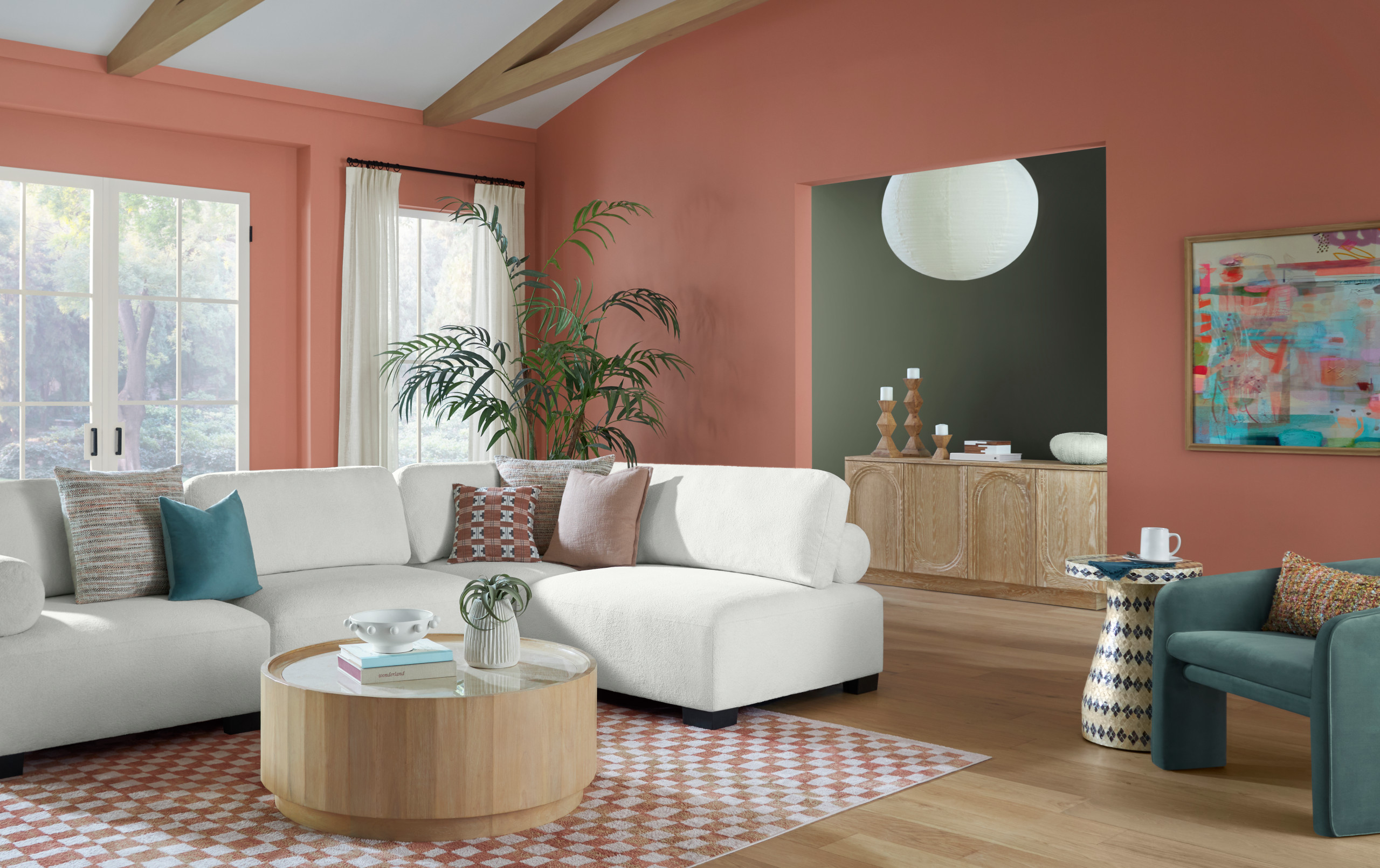
Thanks to the Color Finder, the days of wondering “What’s that paint color?” are over. Rather than spending hours searching for a matching shade, you can find it with the click of a button. When you’re ready to get started on your next home improvement project, turn to the Color Finder with Sherwin-Williams to make the paint color selection process easy and fun.
Ready to try it out? Head to our Photos page and click on a photo you like to see the Color Finder in action.
Note: The Color Finder tool is available to users when browsing Houzz photos from a desktop or laptop computer from the U.S. Houzz website.
More on Houzz
Read more stories
Browse photos for ideas
Find home professionals
Ready to try it out? Head to our Photos page and click on a photo you like to see the Color Finder in action.
Note: The Color Finder tool is available to users when browsing Houzz photos from a desktop or laptop computer from the U.S. Houzz website.
More on Houzz
Read more stories
Browse photos for ideas
Find home professionals


Step 1. When you see a color you like in a photo on Houzz, click on the photo. Once you do, the photo will display in full-screen mode and the Color Finder tool will appear.