

Posting Links
17 years ago
Sort by:Oldest
Comments (3)
Related Stories
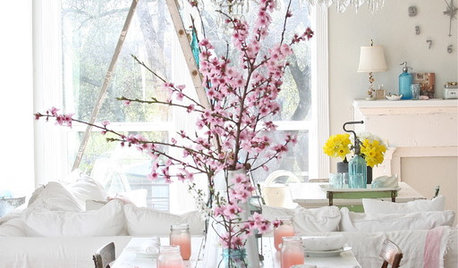
PINKThe Pink Link — Learn the Secrets of a Decorating Darling
Is it the kiss of death for masculine rooms? Can it soothe a psyche? Discover the history and theories behind this delightful color
Full Story
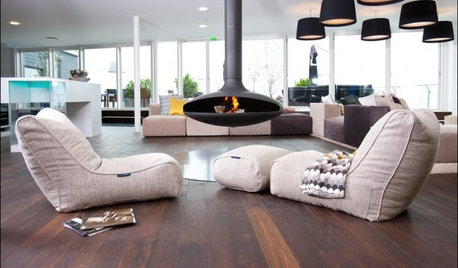
FALL AND THANKSGIVINGThanksgiving: How to Lounge in Style Post-Feast
After the big meal, decompress on a modern bean bag, day bed, Togo sofa or (even better) just the floor
Full Story
FENCES AND GATES12 Delightfully Different Garden Walls and Fences
If pickets seem picked over and you shrink from chain link, try these full-of-personality fencing alternatives
Full Story
Why There's Beauty in Grid, Column and Row
Architecture's repetitions link our buildings with nature's familiar rhythms
Full Story
COLORColor Palette Extravaganza: Room-by-Room Help for Your Paint Picks
Take the guesswork out of choosing paint colors with these conveniently collected links to well-considered interior palettes
Full Story
LANDSCAPE DESIGNModern Garden Designs for Modern Homes
Link your garden to your home’s clean-lined architecture in a most interesting way
Full Story
PETS12 Stylish Solutions for Ugly Cat Furniture
Bland beige post unhappily marking your living room territory? Scratch that with rakish kitty condos, perches and staircases
Full Story
KITCHEN DESIGNShow Us Your Compact Kitchen
Do you have a tiny kitchen that works well for you? Post your pictures in the Comments
Full Story
TREE HOUSESHouzz Call: Show Us Your Well-Designed Treehouse or Tree Fort!
Got a great treehouse or tree fort? We want to see it! Post yours in the Comments and we’ll feature the best in a future article
Full Story
woodenzoo
cmc_97
Related Professionals
Georgetown Furniture & Accessories · Lufkin Furniture & Accessories · Alexandria Furniture & Accessories · Durango Furniture & Accessories · Salina Interior Designers & Decorators · Flint Interior Designers & Decorators · Middletown Interior Designers & Decorators · Plattsburgh Interior Designers & Decorators · Olympia Interior Designers & Decorators · Athens Flooring Contractors · Bloomington Flooring Contractors · Duluth Flooring Contractors · Monroe Flooring Contractors · Victorville Flooring Contractors · Helena Flooring Contractorslola99