

Mapping email content to iPad app?
13 years ago
Sort by:Oldest
Comments (11)
Related Stories

INSIDE HOUZZInside Houzz: Explore the Houzz App’s New Features and Cleaner Look
Update your Houzz app for iPhone®, iPad® and iPod touch® to get more of what you love
Full Story
HOME TECHNow Playing in Homes Everywhere: TV, the App
It's easier than ever to beam streaming content from mobile devices to your TV screen
Full Story
KITCHEN DESIGNWhy Your Kitchen Wants Its Own iPad
Cooking-school gateway, recipe database, foodie networking ... an iPad in the kitchen has uses far beyond being a message center
Full Story
LIFEBe Prepared With a Household Inventory
Document your household's contents the efficient way, then let your list help you streamline your belongings
Full Story
HOME TECHIs the Timing Finally Right for Framed Digital Art?
Several companies are preparing to release digital screens and apps that let you stream artworks and video on your wall
Full Story
HOME TECHHigh-Tech Tips for Securing Your House While You're Away
Prevent burglaries when you're traveling by using the latest gadgets, apps and online services
Full Story
HOME TECHMake Your Home a Champion Olympics Viewing Platform
Watch a sprint during a cooking marathon or a vault while curled up in bed. Live streaming and mobile apps put viewing in your control
Full Story
MOST POPULARGet Ready for the Smart Coffee Table
Intelligent tables with touch screens are reaching the consumer market, with all the power of personal computers and more
Full Story
HOME TECHTech to the Rescue: How to Get Stolen Gadgets Back
Catch any crook who dares steal devices from your home with recording and tracking technology that's easy to use
Full Story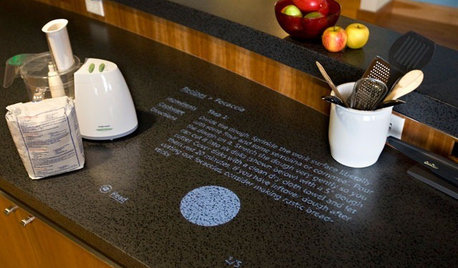
HOME TECHComing Soon: Turn Your Kitchen Counter Into a Touch Screen
Discover how touch projection technology might turn your tables and countertops into iPad-like devices — and sooner than you think
Full Story
kennatOriginal Author
Related Professionals
Vidalia Architects & Building Designers · Marietta Architects & Building Designers · Sugar Land Architects & Building Designers · Escanaba Architects & Building Designers · Kenosha Architects & Building Designers · Oxnard Architects & Building Designers · Vincennes Design-Build Firms · Hagerstown Design-Build Firms · Vineland Design-Build Firms · Woodward Design-Build Firms · Worthington Design-Build Firms · Spokane Design-Build Firms · Cape Girardeau Kitchen Remodelers · Columbia Kitchen Remodelers · Muncie Kitchen RemodelersGuy Shaviv
kennatOriginal Author
Guy Shaviv
kennatOriginal Author
Tiana G
beehive54
beehive54