

Inserting a link to another site via your message
23 years ago
Sort by:Oldest
Comments (3)
Related Stories

DECORATING GUIDES7 Favorite Vintage Furniture Sites
Take a Break from Flea Markets and Goodwill and Scour the Web for Unique Vintage Decor
Full Story
MOVINGSaying Goodbye to One Home and Hello to Another
Honor your past and embrace your future with these ideas for easing the transition during a move
Full Story
HOUSEKEEPINGDon't Touch Another Stain Before You Read This
Even an innocent swipe with water may cause permanent damage. Here's what to know about how rugs and fabrics react
Full Story
HOME TECHHarness the Cloud: 8 Ways to Automate Your Housekeeping
Make life easier by scheduling regular deliveries, managing appliances, simplifying meal planning and more via the web
Full Story
GARDENING GUIDESHow to Find the Right Native Plants for Your Yard
Find plant maps, sale sites and guides that make going native in the garden easier than ever
Full Story
RUSTIC STYLEHouzz Tour: A Southern Vacation Home Trots Out Equestrian Style
Barn-recalling details give a home near horse stables a relaxed vibe that suits both the owners and the pastoral site
Full Story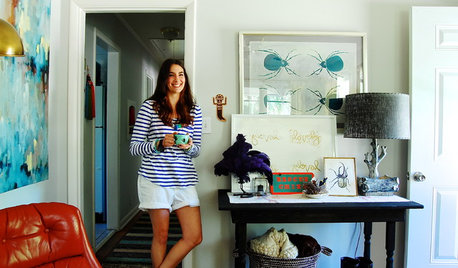
LIFEThank U 4 the Gr8 Gift: How to Send Thanks in the Digital Age
We click open invitations and RSVP via text, but a handwritten thank-you is sometimes still best. Here's how to tell
Full Story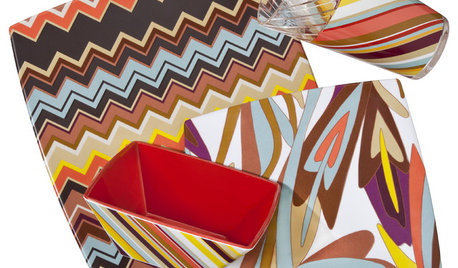
Missoni for Target Collection Debuts to a Shopping Frenzy
Get a look at the colorful collection that led eager shoppers to line up early and crash site
Full Story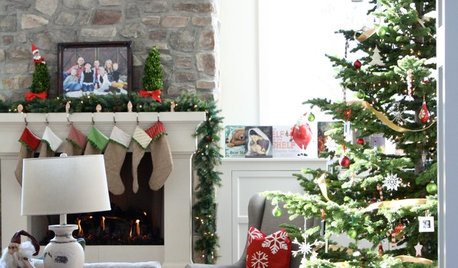
LIFE10 Ways to Work Through Grief Triggers During the Holidays
A year after losing her sister, she was facing another holiday. Here’s how one woman learned to find joy again
Full Story
FUN HOUZZGeek Lab: How to Build a Steampunk Cat Transit System
Give your kitty another avenue for fun with a tubular walkway system that lets him go his own way
Full StorySponsored

Central Ohio's Trusted Home Remodeler Specializing in Kitchens & Baths

scubamid
TomboyOriginal Author
Related Professionals
Albany Bathroom Remodelers · Clarksville Bathroom Remodelers · Utica Bathroom Remodelers · Mountain Home General Contractors · Starkville General Contractors · Philadelphia General Contractors · Austin General Contractors · Clarksburg General Contractors · Sacramento General Contractors · Santa Barbara General Contractors · Lewiston General Contractors · Portland General Contractors · Longview General Contractors · Magnolia Interior Designers & Decorators · Fort Wayne Interior Designers & DecoratorsTomboyOriginal Author